Where it hurts: Scheduled

The booking fits the calendar. It doesn’t fit the drive.

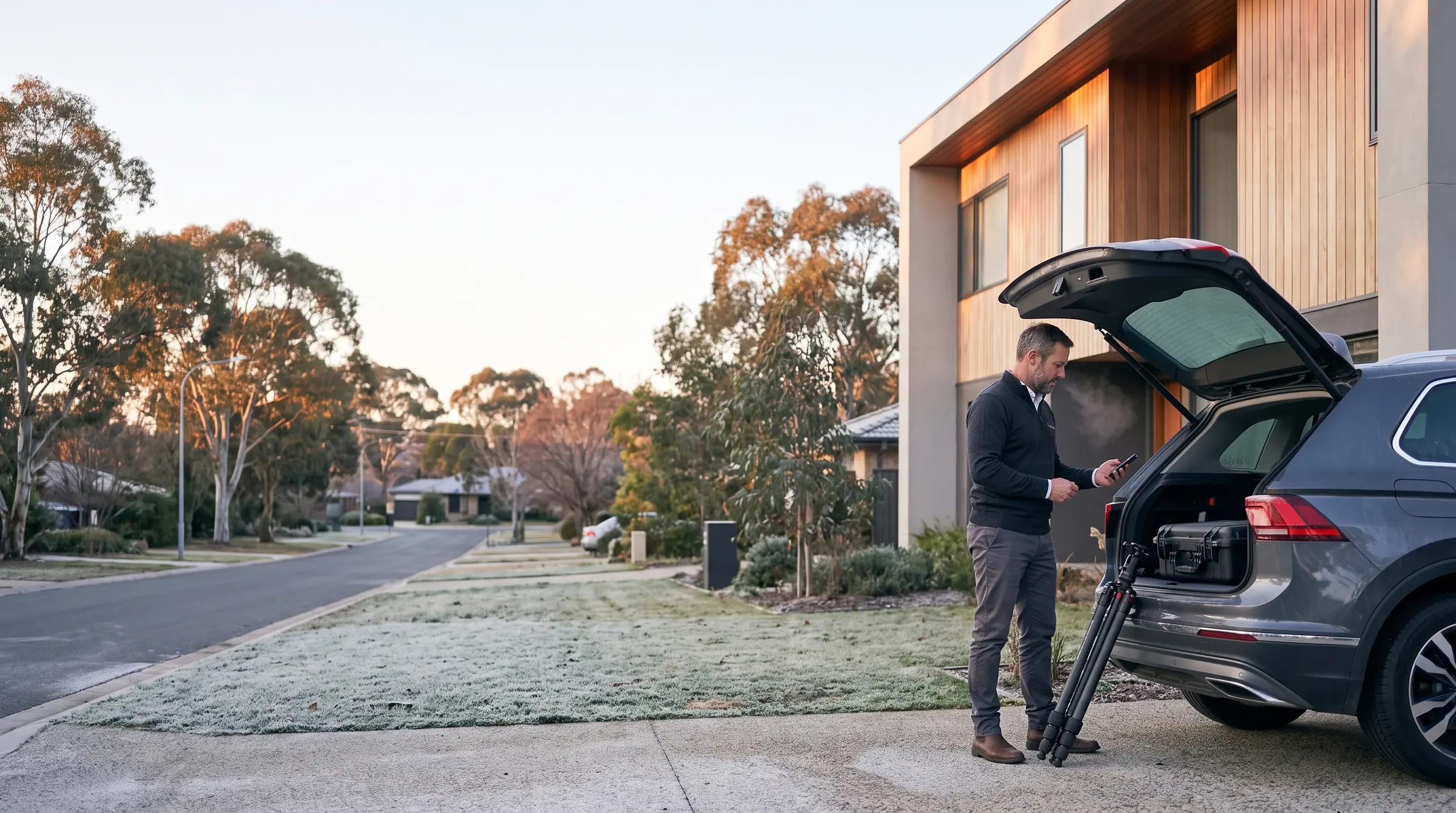
An agent grabs the 10:30. Your shooter wraps up across town at 10:15. Someone’s going to be late, and you’re the one who’ll apologise.

The short answer

Locium only offers times a photographer can actually reach, using real drive times.

How Locium handles it

Three steps, on the real screens.

Mon 8:14 am

Only real slots on offer

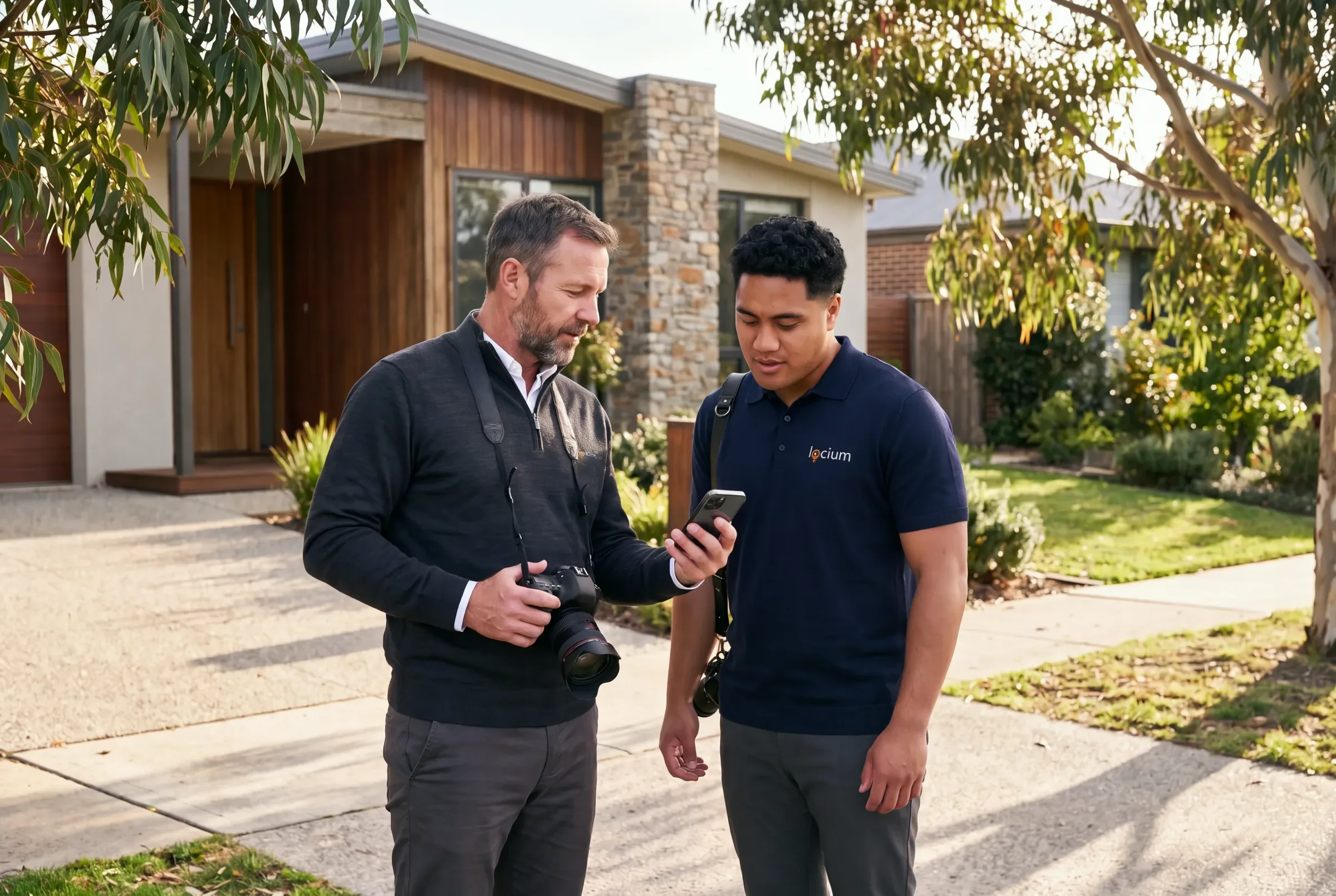
Before your booking page shows a time, it checks the drive from the photographer’s previous job. If nobody can make it, the slot never appears.

More at this step · 3
  • Booking slots checked against the real drive from the previous job, so clients can never book a time your shooter can't make
  • Online booking only offers times a photographer can actually take, inside your business hours, blocked-out days and time increments
  • Request a morning or afternoon when no slot fits, or keep a preferred time as a request; it lands in Needs you as Time to confirm
Mon 4:30 pm

Plan tomorrow on a map

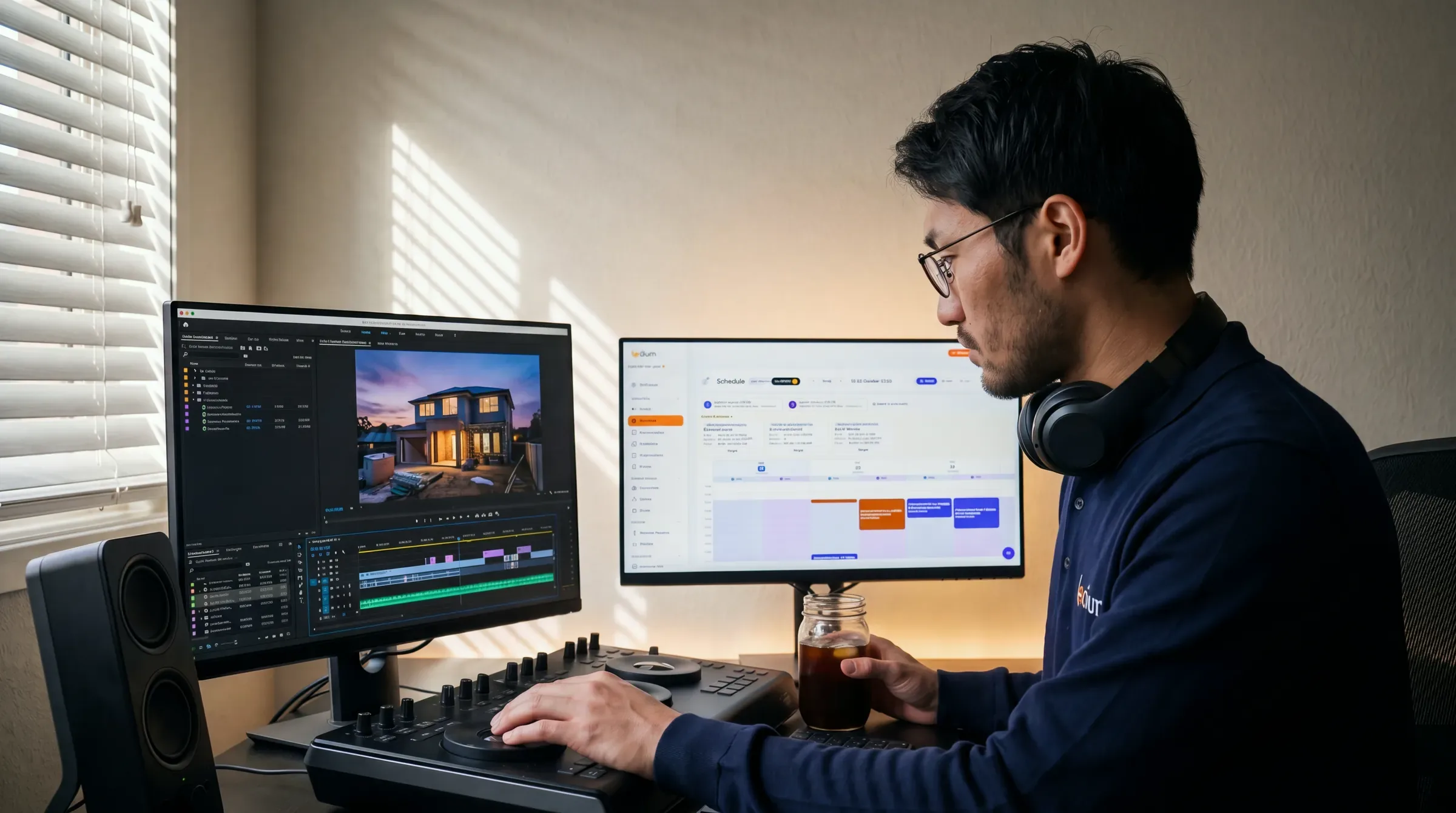
Plan routes on the Schedule lays out each shooter’s stops on real road routes. Optimise day re-orders them in one tap, and confirmed bookings stay put.

More at this step · 3
  • Plan routes: a drag-and-drop route builder on the Schedule, with one-tap "Optimise day"
  • Confirmed bookings stay locked, and the optimiser plans around them
  • Real road routes on every map, so drive times are exact rather than straight-line guesses

Tue 7:50 am

Every gap checked

The Schedule shows the drive between jobs and flags any gap too short to make, with how many minutes you’re short.

More at this step · 3
  • The calendar flags a drive longer than the gap between two jobs, with how many minutes short it is
  • Twilight & golden hour detection based on property coordinates
  • Skill-based provider assignment (FAA drone, Matterport, etc.)

Try it on your next job.

Sign up, add a product and book a test shoot. No card needed, and nothing to pay on Pay as you go until you deliver.